
 Lietuviškai
 Deutsch
 Français
 Русский
 Español
 Polski
 Italiano
 Українська
 Čeština
 Português
 日本語
 Latviešu valoda
 Eesti
 Magyar
 Bahasa Indonesia
 Türkçe
 हिन्दी
 Ελληνικά
 العربية
 ไทย
 Tiếng Việt
 Română
 Bahasa Melayu
 বাংলা
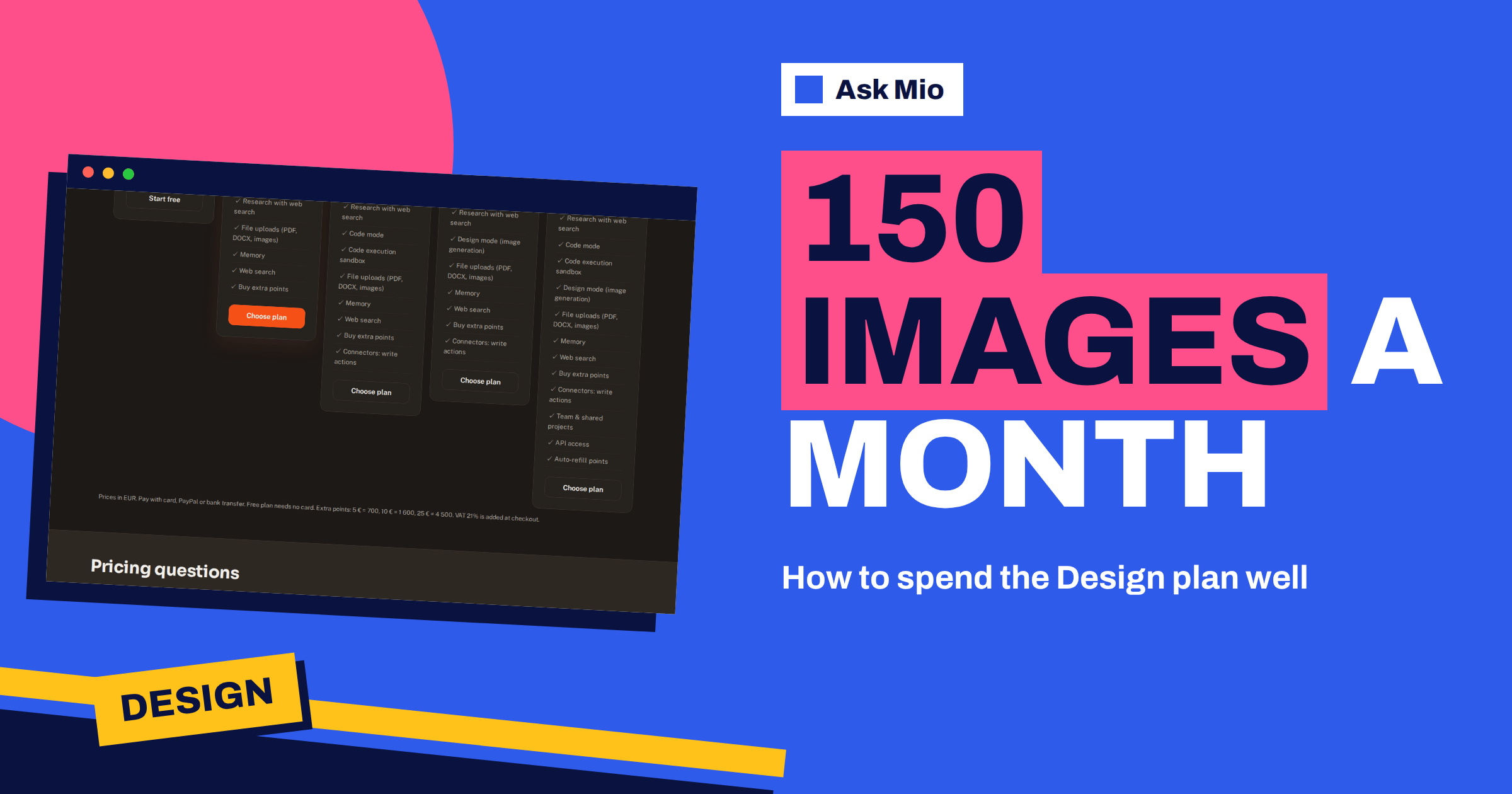
The Ask Mio Design plan is built around one number: 150 images a month. At €12 a month it adds Design mode to the everyday tools, gives 5000 points and a 500-point window, and caps images at 150. That is plenty for a steady posting routine and for the occasional campaign, but only if you plan how to spend it. This guide shows what the plan contains, how the image budget works, how to divide 150 images between real jobs and how to avoid wasting them.
All figures come from the live pricing page. They can change, so check the page before you subscribe. The method below works whatever the exact numbers are: know your cap, know your cost per image, and decide in advance what each image is for.
What the Ask Mio Design plan includes
The Design plan costs €12 a month or €120 a year, which is two months free. Every plan has Chat and Write modes, and Design adds the following.
| Item | Design plan |
|---|---|
| Points per month | 5000 |
| Points per 5-hour window | 500 |
| Images per month | 150 |
| Max file size | 100 MB |
| History | Unlimited |
| Team seats | 1 |
| Modes | Chat, Write, Research with web search, Design (image generation) |
| Also included | File uploads, memory, web search, extra points packs, connectors with write actions |
Design mode generates images from a description. The homepage lists what it is for: logos, banners, social posts and illustrations from a sentence. You describe the picture in your own language, Mio writes the image prompt and generates it. There is also a ready-made image and poster job on the features page, described as a generated picture such as a featured image, poster, banner or illustration. The Design plan does not include Code mode or the execution sandbox. If you need those as well, see the Coding plan or Business.
How the image budget works
Points and images are two separate limits that work together. A generated image costs 20 points, according to the pricing page. The monthly cap is 150 images, and the monthly points are 5000. So 150 images use 3000 points, which leaves 2000 points for everything else you do in Chat, Write and Research.
The 5-hour window adds a third rule. With 500 points per window and 20 points per image, a window can cover up to 25 images if you spend nothing else in it. A heavy design session will therefore hit the window before it hits the month. If that happens, take a break and come back when it resets, or spend the time on tasks that cost fewer points. The article on tokens vs points explains why Ask Mio uses points instead of counting words.
One more point to keep clear: the image cap is a count of generated images. Every attempt counts, so a prompt that you discard still uses one. That is why planning pays off.
Divide 150 images between real jobs
Do not spend images one at a time as ideas arrive. Give each category a budget at the start of the month. Here is an example for a small shop that posts regularly and runs one promotion.
| Job | Images per month | Notes |
|---|---|---|
| Social posts, weekly routine | 40 | About ten a week, including variations |
| Blog featured images | 20 | One per article, with a spare for each |
| Promotion banners | 25 | Web banner, email header and social sizes |
| Product scenes and mockups | 30 | Backgrounds and lifestyle scenes |
| Experiments and style tests | 20 | Try looks before committing |
| Reserve | 15 | For corrections and surprises |
| Total | 150 |
This is only a model. Change the numbers to match your work, but keep a reserve. Retries are the part people forget, because the first version of an image is often close but not right.
Write prompts that waste fewer images
A good prompt saves more images than any other habit. Mio writes the image prompt from your description, so give it what it needs.
- Subject: what the picture shows, in one sentence.
- Purpose: where it will be used, such as a blog header or a story post.
- Style: flat vector, photo, watercolour, minimal, bold poster.
- Colours: name two or three, or say “use our brand colours” and list them.
- Composition: where the empty space should be if you will add text later.
- Exclusions: things you do not want, such as extra text or busy backgrounds.
Generated pictures often struggle with exact lettering, so a common method is to generate the image without text and add the words yourself in a design or presentation tool. Ask Mio can also produce a PDF flyer or an HTML or SVG diagram when you need precise text and layout instead of a picture.
Sizes and formats
Decide the size before you generate. A square post, a wide blog header and a tall story all need different shapes, and recropping a finished image can cut off the subject. Ask for the shape in the prompt, and ask Mio to leave safe space along the edges. Our guide to image sizes and aspect ratios lists the common shapes, and the article on website hero images covers wide headers. For background on pixels and print quality, see image resolution on Wikipedia.
Use the other modes to prepare
The Design plan also includes Chat, Write and Research, and they save images. Use Chat to brainstorm five concepts and pick one before you generate. Use Write to draft the headline and the caption, so the image and the words match. Use Research with web search to check what visual style is common in your field, or whether a symbol means something unexpected in a market you are entering. Those steps cost far fewer points than an image, so you spend your 20-point images on ideas you already believe in.
Memory helps too. You can tell Mio your brand colours, tone and the things to avoid, and it keeps them across chats, with you seeing and controlling what it keeps. The article on projects and memory explains how to set that up.
A short checklist before each image
Before you press generate, run through five questions. Where will this image appear, and what shape does that place need? Who will see it, and what should they feel or do? Which two or three colours must be present? What must be left out? And what is the next step for the image, such as adding a headline, resizing or sending it for approval? If you can answer all five in a sentence each, paste them into Design mode as the description. If you cannot, spend a few cheap points in Chat to clarify the idea first. The questions take a minute and often save a 20-point retry, which over a month adds up to several extra usable images.
Social posts, banners and posters in practice
For social posts, plan a week at a time. Ask Mio for seven post ideas with captions, choose the best four, then generate one image for each and one variation for the favourite. That is about eight images a week. For banners, generate the background without text and add the headline later, so one image works in several sizes. For posters, our guides to the AI poster maker and the social media banner walk through layout and print or screen sizes.
Who gets the most from the Design plan
The plan suits people for whom pictures are a regular part of the job: a shop owner who posts every week, a blogger who needs a featured image for every article, a freelancer who prepares mood boards for clients, a teacher who illustrates handouts, or a small club that makes posters for each event. It suits them because the monthly cap is generous for steady use and the other modes help prepare the work. It suits people less if they only need an image now and then, or if they need exact lettering and precise layouts, where a flyer or diagram job is a better route.
When to buy a pack, upgrade or stay put
If you reach the cap often, look at the numbers before you pay. Extra points packs, 5 € for 700 points, 10 € for 1 600 and 25 € for 4 500, add points but the pricing page lists the image allowance per plan, so read it before you assume a pack lifts the image cap. If images are your main work and you also need code or several users, Business offers 300 images a month, 15000 points and 5 seats for €29. The Chat plan at €5 does not include Design mode, so images need one of the plans that list it. The article on yearly vs monthly plans helps decide when the annual price pays off.
A month in four weeks
A simple calendar keeps the budget honest. In week one, spend about 40 images: brainstorm concepts in Chat, then generate the first set of social posts and the featured images for the month’s articles. In week two, spend about 40 more on banners and product scenes for the promotion you plan. In week three, use about 40 on the promotion itself, with variations for each size you need. In week four, keep about 30 for corrections, last-minute requests and one or two experiments. Because 150 is a hard cap, check your count each Friday, note how many images you used and how many are left, and move budget from a category that was quiet to one that needs more.
Common mistakes with the Design plan
- Generating before deciding. An image made without a purpose is rarely used and still counts against the cap.
- Asking for text inside the picture. Lettering is often wrong. Generate the image without text and add the words yourself.
- Forgetting the window. A big month does not help if one afternoon needs more than 500 points.
- Spending the reserve early. Corrections always come, so protect the last ten to fifteen images.
- Skipping alt text and checks. An image that is not described or reviewed can harm accessibility and trust.
Rights, accuracy and checks
Before you publish an image, check it. Look for odd details, wrong text, distorted hands or objects, and anything that suggests a real person or brand by accident. Do not use generated images as proof of a real product, place or event. Laws in the EU require AI content to be marked, and Ask Mio’s features page describes a tool that removes AI provenance metadata; it says to use that only on content you own and may publish unmarked. Add alt text to every image you publish, as described in the WCAG guidance.
Frequently Asked Questions
How many images does the Ask Mio Design plan include?
The Design plan includes 150 images a month, together with 5000 points and a 500-point window every 5 hours. A generated image costs 20 points, so 150 images use 3000 of the 5000 points and leave 2000 for Chat, Write and Research.
Does the Design plan include Code mode?
No. The Design plan has Chat, Write, Research with web search and Design mode, plus file uploads, memory and connectors with write actions. Code mode and the execution sandbox are in the Coding plan and in Business, which combines all the modes.
How many images can I make in one session?
The 5-hour window is 500 points, and an image costs 20 points, so a window covers up to 25 images if you use no other points in it. When the window is used up, wait for it to reset or switch to tasks that cost fewer points.
Do discarded images count?
Treat every generated image as used. The cap counts images that Mio generates, whether you keep them or not. To save images, brainstorm in Chat first, write a clear prompt and generate the version you intend to publish instead of testing many random ones.
Is the Design plan cheaper yearly?
Yes. The yearly price is €120, which is two months free compared with €12 a month. Prices are in euros, VAT of 21% is added at checkout and you can pay by card, PayPal or bank transfer. Check the current figures on the pricing page.
The Bottom Line
The Design plan gives 150 images a month, 5000 points and a 500-point window for €12. Spend them on purpose: split the cap between jobs, keep a reserve, brainstorm in Chat before you generate, write specific prompts and check every result before you publish. See every current figure on the Ask Mio pricing page and start with the free plan to test your prompts.