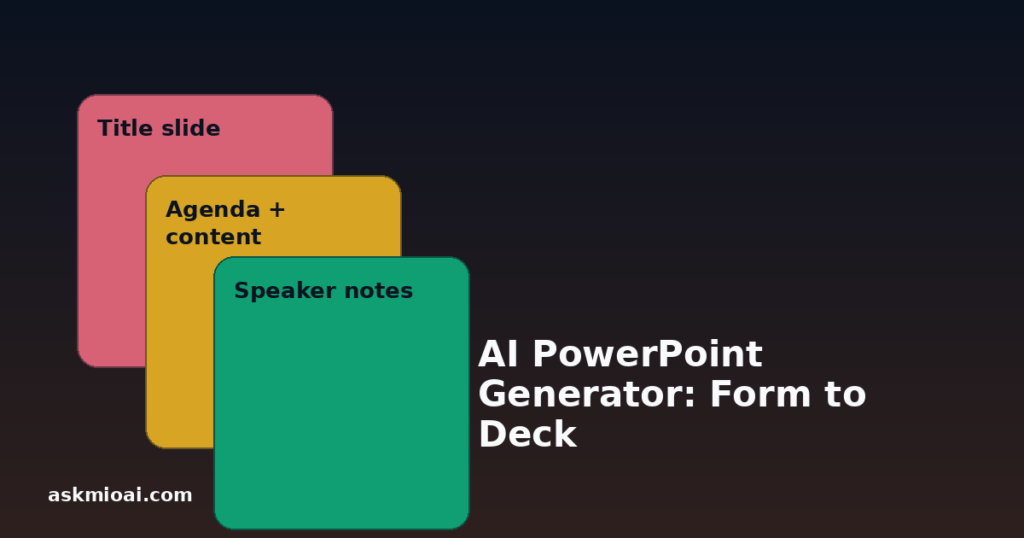
An AI PowerPoint generator turns a title, an agenda outline and a few content points into an actual .pptx file — with speaker notes already drafted — instead of a bullet list you’d still have to build slides from. Ask Mio’s “Slide deck (PowerPoint)” ready-made job does exactly this: “a ready .pptx deck: title, agenda, content slides and speaker notes,” per the features page, and it’s worth being specific about what “ready” means here versus what still needs a human before it goes in front of a room.
What a Generated Deck Actually Contains
Filling in the form for this template typically means providing a topic, an audience, and either a rough outline or enough raw material (notes, a document, key numbers) for Mio to structure into one. What comes back is a real .pptx file, not a text outline pretending to be slides: a title slide with the deck’s name and presenter framing, an agenda slide listing the sections that follow, content slides with a heading and a reasonable number of points per slide rather than a wall of text, and speaker notes attached to each slide — the talking points a presenter would use to expand on what’s shown, kept separate from what the audience actually sees on screen.
| Slide type | What it contains |
|---|---|
| Title slide | Deck name, subtitle, presenter/date framing |
| Agenda slide | The sections the deck will cover, in order |
| Content slides | One idea per slide, headline plus supporting points |
| Speaker notes | Expanded talking points per slide, not shown to the audience |
Why Speaker Notes Matter More Than They Sound
It’s easy to undervalue speaker notes until you’re the one standing in front of a room with only bullet points on screen and no memory of what you meant to say about the third one. Good speaker notes bridge that gap — they’re where the actual explanation, the supporting number, or the anecdote that makes a slide land lives, while the slide itself stays visually simple. A generated deck that includes drafted speaker notes gives you a starting script for every slide, which you then trim, personalize and fact-check rather than writing from a blank page under time pressure the night before a presentation.
What a Generated Deck Is Good For
This template is strongest for decks with a clear, fairly standard structure: an internal status update, a sales pitch built around benefits and pricing, a training deck walking through a process step by step, a project proposal with problem-solution-plan framing. In these cases, most of the actual work — deciding what goes on which slide, writing a coherent flow from opening to close, drafting notes that explain each point — is the part an AI PowerPoint generator does well, because the shape of a “normal” deck for these purposes is well understood and doesn’t require deep, idiosyncratic judgment calls the model can’t make from the brief you give it.
What Still Needs a Human
A generated deck is a strong first draft, not a finished product ready to present unreviewed. Three things specifically need a human pass. First, numbers and claims: if the deck cites a statistic, a price, or a specific fact, verify it against your actual source before it’s in front of a client or your board — a template fills in the structure correctly but can’t independently confirm a number it wasn’t given is accurate. Second, visual design: the generated .pptx gives you correct slide structure and content, but a brand’s exact color palette, logo placement and custom visual style typically still need a design pass in PowerPoint itself, especially for anything client-facing where visual polish matters as much as content. Third, delivery: speaker notes are a starting script, not a substitute for knowing your material — rehearsing with the actual notes, adjusting tone for the specific room, and being ready for questions the deck doesn’t cover are still entirely on the presenter.
| What the template handles | What still needs you |
|---|---|
| Slide structure and flow | Verifying every number and claim |
| Draft speaker notes per slide | Rehearsing and personalizing delivery |
| Reasonable content-per-slide pacing | Brand-specific visual design and logo placement |
| Agenda and section ordering | Anticipating and preparing for audience questions |
How Much Time This Actually Saves
It’s worth being concrete about where the time savings come from, rather than treating “AI makes it faster” as a given. Building a ten-slide deck from scratch typically breaks into several steps: deciding the section structure, drafting content for each slide, deciding how much text fits per slide without overwhelming it, writing speaker notes to fill the gaps between what’s shown and what needs saying, and only then formatting everything in PowerPoint’s actual interface. An AI PowerPoint generator collapses the first four of those five steps into one request, leaving formatting and brand polish as the remaining manual work. For a deck whose structure is fairly standard — most internal updates and sales pitches are — that’s a real reduction from an hour-plus of drafting work down to a few minutes of reviewing and adjusting a first draft that’s already close.
Deck Types This Handles Well, and Ones That Need More From You
| Deck type | How well the template fits |
|---|---|
| Internal weekly/monthly status update | Very well — standard structure, predictable sections |
| Sales pitch with benefits and pricing | Well, if you provide the actual pricing and benefit details |
| Training or onboarding walkthrough | Well — sequential, step-by-step structure suits the format |
| Investor pitch deck | Good starting structure, but needs heavy fact-checking and design polish given the stakes |
| Highly creative or unconventional format (e.g. a deck built as a visual story with minimal text) | Weaker — the template’s strength is structured content, not an unconventional visual concept |
Decks for Teams
On plans with shared team projects, the same template can produce a base deck that multiple people then build on rather than one person drafting from zero and circulating it for feedback afterward. A team preparing for a client renewal, for example, might start from a generated deck covering the standard renewal structure, then have different team members fill in their own sections — usage data, support history, roadmap — directly in the resulting .pptx, since it’s a standard file every team member’s own PowerPoint can open and edit without any special software.
A Worked Example
Say you need a 10-slide deck for a Monday client update. You give Mio the project’s status notes from the past two weeks, the client’s name, and the tone (professional but not overly formal). What comes back: a title slide, an agenda covering “Progress,” “Blockers,” “Next Steps” and “Questions,” content slides summarizing what shipped and what’s pending with a clean one-idea-per-slide structure, and speaker notes under the “Blockers” slide specifically flagging the two items that need the client’s input to move forward — the actual substance you’d otherwise spend twenty minutes structuring from raw notes yourself.
PowerPoint vs Interactive HTML Slides
Ask Mio also offers a second way to turn content into a presentation: Interactive slides (HTML), a single browser-based file instead of a .pptx. The choice between the two comes down to where and how you’ll present.
| Situation | Better choice |
|---|---|
| Presenting on someone else’s laptop or a conference room system | PowerPoint (.pptx) — universally compatible software |
| Editing further in familiar desktop software | PowerPoint — opens directly in PowerPoint or Google Slides |
| Sending as an attachment for someone to review offline | PowerPoint — the expected format for async review |
| Presenting from your own laptop with just a browser open | Interactive HTML — no software installation needed at all |
| Wanting a distinctive, code-styled visual look | Interactive HTML — more visual flexibility built in |
What Generating a Deck Costs
Ask Mio prices usage in points, and generating a full deck through a ready-made job is a heavier operation than a normal chat reply, which costs 1 point, per the pricing page. Exactly how a multi-slide deck with speaker notes is priced depends on its length and complexity, but it sits well above a simple factual answer, in line with other substantial generation work. Budgeting for this is straightforward on a paid plan: the Coding and Design plans’ 5,000-6,000 monthly points comfortably cover several decks a month alongside normal chat use, and the Business plan’s 15,000 points suit a team generating decks regularly across multiple projects.
Pairing the Template With an Expert
Picking an expert before generating a deck changes the thinking that goes into it, even though the template itself handles the file structure. Selecting “Marketing strategist” ahead of a pitch deck request tends to sharpen positioning and messaging choices before the content template turns that thinking into actual slides; selecting “Data analyst” ahead of a results-review deck tends to produce content slides that lead with the pattern in the numbers rather than a flat list of figures. The expert shapes what goes into the brief; the template turns that brief into a file.
Frequently Asked Questions
Can I edit the generated .pptx file afterward?
Yes — it’s a standard .pptx file that opens directly in PowerPoint, Google Slides, or Keynote (with import), and you edit it exactly like a deck you built manually, including changing fonts, colors, layouts and content.
Does the generated deck match my company’s brand colors automatically?
Not unless you specify brand details in the request — the template handles content structure and speaker notes; matching an exact brand palette, logo placement and custom visual template typically still needs a manual design pass afterward.
How many slides does a generated deck typically have?
This depends on what you ask for and how much content you provide — the template scales to fit a brief outline or a longer set of notes, rather than defaulting to one fixed slide count regardless of content.
Are the speaker notes ready to read verbatim during a presentation?
Treat them as a strong starting script rather than a final one — they’re drafted to expand on each slide’s points, but personalizing tone, verifying every fact, and rehearsing before presenting is still worth doing.
Can I generate a deck from an existing document instead of starting blank?
Yes — providing existing notes, a report, or key points as the source material generally produces a more accurate, relevant deck than starting from a brief topic description alone.
What plan do I need for the PowerPoint template?
Ready-made jobs that generate files are typically included on paid plans; check the current pricing page for which tier includes this specific template.
Can the generated deck include charts or images?
The template is described as producing title, agenda, content slides and speaker notes; for charts built from real data, pairing it with the code runner‘s matplotlib output or the “Image / poster” template for illustrations is the more reliable way to get visual assets that then go into the deck’s slides.
The Bottom Line
An AI PowerPoint generator gets the structural work of a deck — title, agenda, content slides, speaker notes — done in minutes instead of the hour or more it typically takes starting from a blank presentation. It’s strongest for standard, well-understood deck formats and weakest at brand-specific visual polish and fact verification, both of which still deserve a human pass before the deck goes in front of a real audience. Try it on your next routine status update, and see the full list of Ask Mio’s 24 ready-made jobs for what else works the same way.