
 Lietuviškai
 Deutsch
 Français
 Русский
 Español
 Polski
 Italiano
 Українська
 Čeština
 Português
 日本語
 Latviešu valoda
 Eesti
 Magyar
 Bahasa Indonesia
 Türkçe
 हिन्दी
 Ελληνικά
 العربية
 ไทย
 Tiếng Việt
 Română
 Bahasa Melayu
 বাংলা
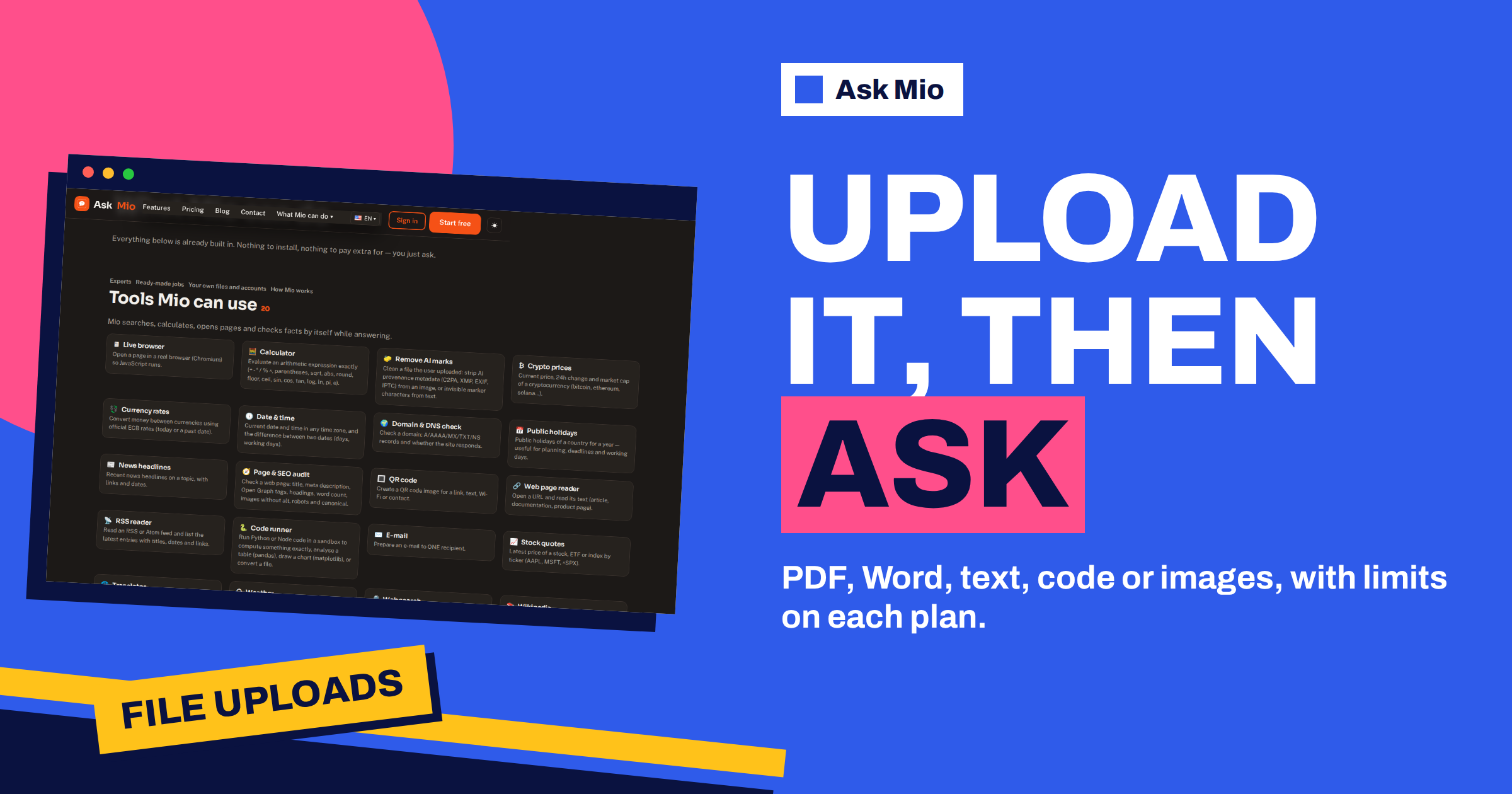
The question about file uploads usually comes in two parts: can Mio read my document, and will it fit? The first answer is yes on every paid plan. The second depends on the plan, because the maximum file size grows from 20 MB on the Chat plan to 100 MB on Coding and Design and 200 MB on Business. The free plan has no uploads at all, which surprises people who expect at least a small one.
This guide explains Ask Mio file uploads in practical terms. You will see which file types the pricing page lists, what each limit means for real documents, how to shrink a file that is too big, how Mio handles long documents and what to do on the free plan. Every limit comes from the live pricing page.
What Ask Mio file uploads allow
The pricing page lists file uploads of PDF, DOCX and images as a feature of Chat, Coding, Design and Business. The FAQ on the same page is a little wider: it says you can upload PDF, Word, text, code or images and ask about them. In Research mode, Mio also analyses PDFs and documents, searches the web and cites its sources.
The Free plan does not list file uploads, and its maximum file size is shown as a dash. If you are on Free, you can still work with text by pasting it into the chat. The uploads feature starts when you move to a paid plan, from 5 euros a month. Our free plan guide shows how to get the most from 600 points before you decide.
Limits by plan
The maximum file size is part of the plan table, next to points and history.
| Plan | Price per month | Max file size | Other file-related features |
|---|---|---|---|
| Free | 0 € | no uploads | Paste text into the chat |
| Chat | 5 € | 20 MB | Research, memory |
| Coding | 12 € | 100 MB | Code mode, sandbox |
| Design | 12 € | 100 MB | Design mode, 150 images a month |
| Business | 29 € | 200 MB | Team and shared projects, API access |
Size is only one limit. Points still apply: a long or complex reply costs 3 points, so asking many detailed questions about a big document uses more than a few short ones. The plan’s 5-hour window applies too, so a session full of large documents can reach the window before it reaches the monthly total. Pace big sessions, and ask focused questions instead of one giant request.
What 20, 100 and 200 MB mean in practice
A megabyte is a unit of file size, and what fits depends on what is inside. These figures are typical, not guaranteed, because files vary a lot.
| File | Typical size | Fits in 20 MB? |
|---|---|---|
| Text-only Word document, 30 pages | Under 1 MB | Yes, many times over |
| Text PDF report, 100 pages | 1 to 10 MB | Usually yes |
| Scanned PDF, 50 pages at high resolution | 15 to 60 MB | Sometimes; often needs 100 MB |
| Phone photo | 2 to 10 MB | A few at a time |
| Slide deck with many photos | 20 to 100 MB or more | Often not; fits on Coding or Design |
| Spreadsheet with 100,000 rows | 5 to 20 MB | Usually, sometimes not |
| Zipped code project | 1 to 100 MB | Depends on assets |
The pattern is clear. Text is small. Images, scans and slide decks are large. If your work is mostly text documents, 20 MB goes a long way. If it involves scans, long decks or large projects, check the size before you choose a plan.
What Mio does with long documents
A big file is not the same as a long conversation. A document may have hundreds of pages, more than a model can read at once. The features page explains how Mio deals with this. Document memory keeps files you upload searchable in later chats: Mio finds the right paragraph by meaning and quotes it, so you do not have to attach the same document again. Headroom shortens repeated file dumps and quoted text so that long chats stay cheap and do not hit the limit, and the chat shows how much was saved.
In practice, that means you can ask targeted questions about a long report and get quotes from the relevant sections. Our guide to Headroom and document memory explains the details, and the article on AI context windows explains why length limits exist in the first place.
Still, for tasks that need the whole document, such as a full summary, work in stages: ask for the structure first, then section summaries and then the overall picture. Ask for page or heading references so you can check each claim against the source.
Shrink a file that is too big
If a file is over the limit, you have several options, from simple to more involved.
- Check what is inside. A 40 MB PDF is often full of high-resolution images. If you need only the text, that is wasteful.
- Export again with lower image quality. Most PDF and office programs have a “reduce file size” or “optimise” option that applies data compression to the images.
- Split the file. Divide a long report into chapters, and upload the ones you need. This works well for books and manuals.
- Remove what you do not need. Delete cover images, appendices full of scans and unrelated sections.
- Convert to text. Copy the text of a PDF into a document, or use text extraction, and upload that. Text is tiny compared with images.
- Resize photos. A phone photo at full size is rarely needed. A smaller copy is enough to read a label or a chart.
- Move up a plan. If large files are part of your daily work, the Coding and Design plans allow 100 MB and Business allows 200 MB.
For scanned documents, optical character recognition turns the picture of text into real text. Our guide to AI OCR explains how to get text from an image, which is often smaller and easier to search than the scan.
Which files work best
Files that contain real text work better than images of text. A native PDF, a Word document or a plain text file gives Mio clean content. A scan or a photograph of a page requires reading the picture, and results depend on the quality: sharp, straight and well lit images work best.
For tables, send a CSV or XLSX when you can. The ready-made job Analyse my data accepts a pasted table or an attached CSV or XLSX and finds patterns and builds a summary. A screenshot of a table is harder to read than the file itself. Our guide to AI data analysis shows what to ask. For contracts, the Contract and document check job summarises the document in plain language and highlights risky clauses, as covered in our guide to AI contract checks.
For code, the Code review and fix job accepts pasted code or an attached ZIP. That is one reason the Coding plan has a 100 MB limit. Our article on code review with a ZIP upload explains how it works.
Ask good questions about an uploaded file
An upload is only the start. These habits make the answers better.
- Say what the file is and what you want. “This is a supplier contract. List the obligations of the buyer.”
- Ask for references. Page numbers, headings or quotes let you check the answer.
- Ask one thing at a time for long files, or work section by section.
- Tell Mio what to ignore. “Skip the appendix” saves points and noise.
- Check numbers against the original. Treat extracted figures as a first pass.
- Ask what is missing. “What does this document not say about payment terms?”
Our guide to AI research with sources lists prompts for asking about documents together with web sources.
Privacy and what happens to your files
Uploading a file shares its content with a service, so choose what you send. The pricing page says your chats and files are yours, that you can export or delete them at any time and that they are not used to train models. Ask Mio runs on its own servers. On plans with unlimited history, uploaded files can stay in your account for years unless you delete them, so make deleting part of finishing a project.
Remove what the task does not need: personal data in a contract appendix, passwords in a configuration file, names on a list. Follow your organisation’s rules for confidential material. Our privacy checklist for business lists questions to ask before you upload anything sensitive to any assistant. For photos, the Photo privacy feature removes GPS location, camera serial number and author from images you upload.
A worked example: a quarterly report pack
An office manager receives a 12 MB PDF report, a 30 MB slide deck and a 6 MB spreadsheet every quarter. She is on the Chat plan with a 20 MB limit. The report and spreadsheet fit, but the deck does not. She exports the deck again with reduced image quality and gets 14 MB, which fits.
She uploads the three files and asks Mio for a one-page summary with page references, a list of the five numbers that changed most since last quarter and the questions the board is likely to ask. She spot-checks six figures against the originals and finds them right. Next quarter she asks Mio questions about the new report and the old one, since Document memory keeps the earlier files searchable. The process takes forty minutes instead of three hours, and she has not needed to upgrade. She keeps a short checklist in her notes: export the deck at reduced quality, remove the appendix scans and name each file with the quarter, so that quotes from Document memory are easy to place. Small habits like these keep a 20 MB limit comfortable, and she revisits the choice only if her files grow beyond what a single export step can fix.
Frequently Asked Questions
What file types can I upload to Ask Mio?
The pricing page lists PDF, DOCX and images, and its FAQ says you can upload PDF, Word, text, code or images and ask about them. For code projects, the Code review and fix job accepts pasted code or an attached ZIP. Analyse my data accepts CSV and XLSX files.
What is the maximum file size?
It depends on the plan: 20 MB on Chat, 100 MB on Coding and Design and 200 MB on Business. The Free plan has no file uploads. Prices start at 5 euros a month for Chat, and you can compare all plans on the pricing page.
Can I upload files on the free plan?
No. The Free plan does not list file uploads and shows no maximum file size. You can still paste text into the chat and ask about it. When you need to upload documents, the Chat plan at 5 euros a month is the first plan that allows it.
What if my file is too large?
Reduce image quality when you export, split the file into chapters, remove sections you do not need, convert it to text or resize photos. If large files are part of your daily work, a plan with a bigger limit saves effort.
Are my files used to train models?
No. The pricing page says your chats and files are yours, you can export or delete them at any time and they are not used to train models. Upload only what the task needs and delete files when the project ends.
The Bottom Line
Ask Mio file uploads start on the Chat plan with a 20 MB limit, grow to 100 MB on Coding and Design and reach 200 MB on Business, while the Free plan relies on pasted text. Text documents fit easily, scans and slide decks are the usual problem, and a few simple steps shrink most files. Ask targeted questions, check numbers against the source and delete files you no longer need. Compare plans on the Ask Mio pricing page.