
 Lietuviškai
 Deutsch
 Français
 Русский
 Español
 Polski
 Italiano
 Українська
 Čeština
 Português
 日本語
 Latviešu valoda
 Eesti
 Magyar
 Bahasa Indonesia
 Türkçe
 हिन्दी
 Ελληνικά
 العربية
 ไทย
 Tiếng Việt
 Română
 Bahasa Melayu
 বাংলা
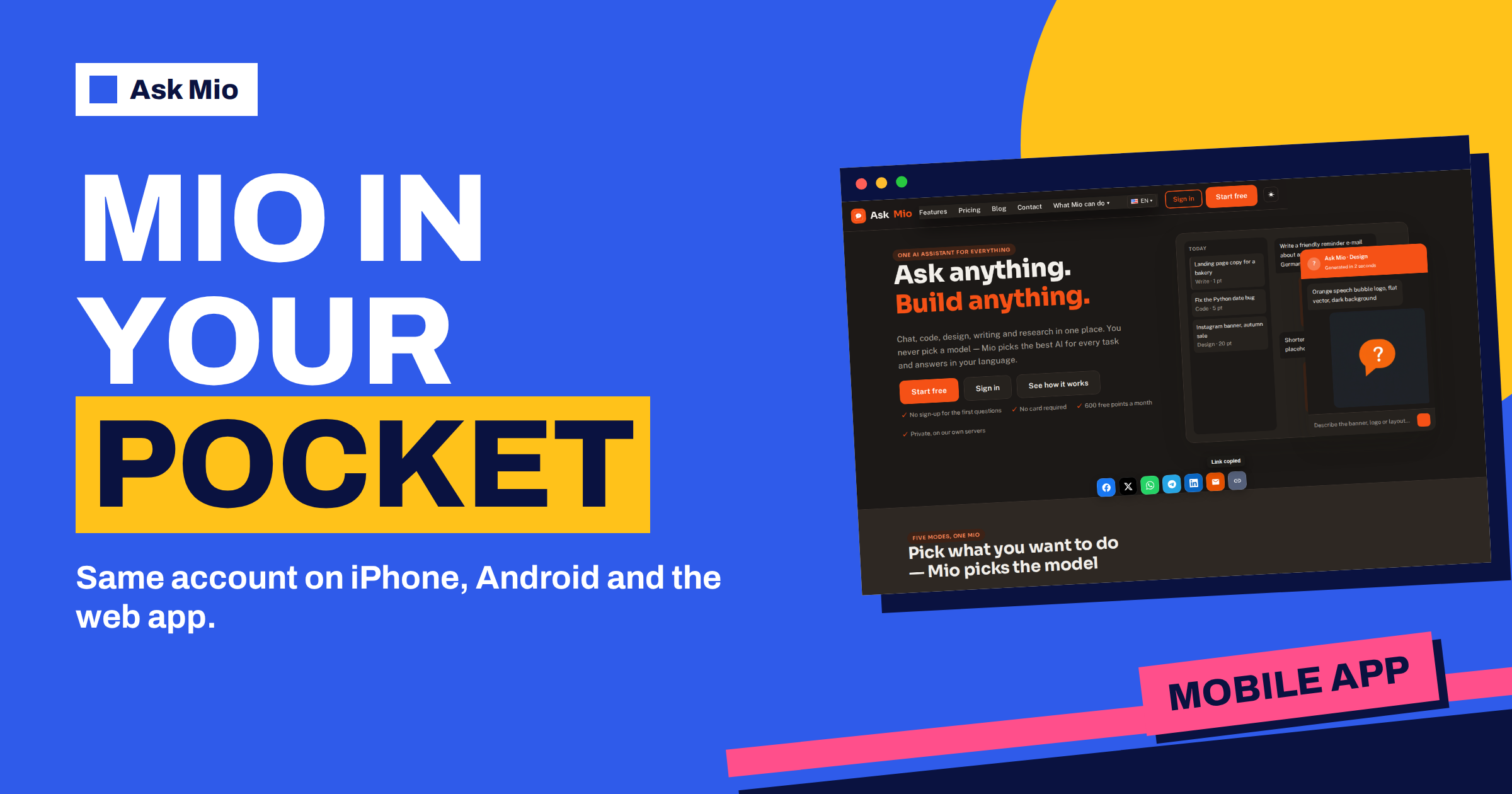
The Ask Mio mobile app lets you use the same assistant on your phone that you use in the browser. There is a version on Google Play for Android and one on the App Store for iPhone, and both sign in with the account you already have. If you prefer not to install anything, the web app also works on a phone, because it is a progressive web app that runs in the browser.
This guide explains where to get the Ask Mio mobile app, how the account and the points carry over, which tasks suit a small screen and which ones are better left for a laptop. It also covers the one privacy setting that is specific to the mobile app. Everything here comes from the live Ask Mio pages; where a detail is not published, the guide says so instead of guessing.
Where to get the Ask Mio mobile app
The home page of Ask Mio has a section called “Take Ask Mio with you”. It says that you use the same Ask Mio account on your phone and gives two buttons: Get it on Google Play and Download on the App Store. Both buttons are on askmioai.com, so start there instead of searching a store for the name, which keeps you away from look-alike apps.
There is also a third way in. The reference page for assistants describes the product as a web app at app.askmioai.com that works as a progressive web app, on a phone and on a desktop. A progressive web app is a website that behaves much like an installed app: it can be opened from an icon and uses the full screen. How that looks depends on your phone and browser, and the MDN guide to progressive web apps explains the idea in more detail.
| Way to use Mio | How you get it | Best for |
|---|---|---|
| Android app | Google Play, linked from the Ask Mio home page | Daily use on an Android phone |
| iPhone app | App Store, linked from the Ask Mio home page | Daily use on an iPhone |
| Web app on the phone | Open app.askmioai.com in the phone browser | Trying Mio without installing anything |
| Web app on a computer | Open app.askmioai.com in any browser | Long documents, code, spreadsheets, slide decks |
None of these is a separate product. They are different doors into the same account.
One account on every screen
When you create an Ask Mio account, the home page lists four sign-in options: e-mail, Google, Facebook or Apple. The same account also works in Talkmio, the team’s live chat for websites, and our features overview shows what the account unlocks. On the phone you sign in the same way you do in the browser, so there is nothing new to learn.
Because it is one account, the things that belong to the account are not tied to the device. The pricing page describes plans per account: the Free plan has 600 points a month with 40 per 5-hour window and a 30-day history, and paid plans add Research, files, memory, Code or Design and more points. Your chats are saved in the account, so a question you start on the train can be read again on the laptop at the office. If something looks different on your phone, check the account first and the device second.
A practical tip: use a sign-in method you can recover. If you chose Google or Apple, you recover through that provider. If you chose e-mail, make sure the address is one you can still open next year. Our guide to AI account security lists habits that protect any AI account, including strong passwords and what to do when a device is lost.
Which tasks suit the phone
A phone is good for short, specific jobs. These examples use only features listed on the live site.
- Quick questions. A normal chat reply costs about 1 point, so everyday questions are cheap. This is what the Free plan is designed for.
- Translation on the move. Mio has a Translator tool that translates a text into another language while keeping formatting. A menu, a hotel message or a short e-mail is a typical use.
- Weather, time and money. Mio has tools for the weather, a 7-day forecast for any city, the date and time in any time zone and currency conversion with official ECB rates. These are travel questions that a phone gets all the time.
- Photos you take. You can attach images and ask about them. Take a picture of a letter, a label or a whiteboard and ask Mio to explain, summarise or list the action points.
- QR codes. Mio can create a QR code for a link, text, Wi-Fi or contact. Handy when a guest asks for the Wi-Fi password.
- Replies on the go. The ready-made job for an e-mail reply gives a polite, ready-to-send answer in the right tone. Paste the message, say what you want to say and copy the result.
Our overview of what Mio can do lists all the tools, experts and ready-made jobs, so you can decide which ones to keep within reach.
Which tasks are better on a computer
Some work is not wrong on a phone, but it is slower. A larger screen and a keyboard help when you:
- Work with code. Code mode and the code execution sandbox (on the Coding and Business plans) are easier to use with a full keyboard and room to read output.
- Review long documents. Mio can read PDF, Word, text, code and images. Reading a 60-page report and its summary side by side is more comfortable on a big screen.
- Build files. Ready-made jobs create a PowerPoint deck, a spreadsheet, a PDF flyer or an interactive HTML slide deck. You will want to open and edit those files in the matching program.
- Set up the account. Plans, projects and memory are quicker to organise with a keyboard.
A sensible habit is to start the big job on the computer and use the phone for follow-up questions and quick checks. Since the chat history is in the account, nothing needs to be copied between devices.
Photos from your phone: what travels with them
Phone photos carry hidden data. Besides the picture, a photo can include the GPS location where it was taken, the camera serial number and the author. If you upload a photo to Mio, you should know about the Photo privacy feature listed on the features page. It removes personal data, such as GPS location, camera serial number and author, from photos you upload. The page also notes that AI provenance marks are kept, because they say that an image was made by a machine, not where you live.
That is useful for the typical phone habit of taking a picture at home and asking an assistant about it. You still decide what is in the picture itself: a bill with your address on it is personal data even without hidden metadata. For anything sensitive, crop the image first. Our guide on what not to share with AI has a short list of things to keep out of any chat.
The mobile app privacy switch
The privacy policy contains one sentence that applies only to phones. It says that Ask Mio sends your request to a third-party AI provider to produce an answer, and that in the mobile app Ask Mio asks for your permission before anything is sent. You can withdraw that permission at any time in More, then AI data sharing.
The same policy says what is sent: the message you write, the earlier messages of the same chat, the files and images you attach, your first name and your language setting, and content from connected services when a chat uses them. It also says that your e-mail address, password and payment details are never sent. If you ever want Mio to stop receiving your requests from the phone, the AI data sharing switch is where to look. It is the place to review that choice whenever you change your mind.
On the privacy side, the rest of the policy applies on every device: Ask Mio does not use your chats or files to train models, you can export or delete your data at any time, and you can delete the whole account in Settings.
Points and limits are the same on the phone
A phone does not change the maths. A normal chat reply costs 1 point, a long or complex one 3, a coding answer 5 to 10 and a generated image 20. Each plan has a monthly amount and a 5-hour allowance, so one long session cannot use the month. Typing a quick question into a chat is cheap; asking for ten images in a row is not.
On the Free plan you have 600 points a month and 40 per window. That is up to 600 one-point replies a month if every question is short, though real use varies. If you find yourself reaching the window on the phone, read the guide to how usage limits work and the one on planning a month on 600 free points.
Set up Ask Mio on your phone in ten minutes
- Open the Ask Mio home page on the phone and tap the store button for your system, or open app.askmioai.com in the browser if you only want to try it.
- Sign in with the account you already use, or create a free one with e-mail, Google, Facebook or Apple.
- Check the AI data sharing permission in the app and decide whether you agree.
- Ask a normal question and note how many points the reply costs, so you know what one answer takes from your plan.
- Attach a photo of something harmless and ask about it, to see how the flow works.
- Say “remember that…” for one fact you want Mio to keep, if your plan includes memory, and open the memory panel to see it. You control everything it stores.
- Decide which jobs stay on the phone and which you will do on a computer.
The whole routine takes ten minutes, and after that the phone is just another way into the account you already have.
Common mistakes
- Creating a second account. If you sign in with a different method by accident, you may end up with an empty second account. Use the same method everywhere.
- Expecting the phone to carry a bigger plan. The plan belongs to the account. If a feature is missing, check the plan on the pricing page.
- Pasting private data in a hurry. Small screens make it easy to paste more than you meant to. Read what you are about to send.
- Doing long work on a small screen. A thirty-page report is possible, but a computer is more comfortable.
- Ignoring the permission screen. Read the AI data sharing prompt once, carefully, instead of tapping through.
Frequently Asked Questions
Is there an Ask Mio mobile app for iPhone and Android?
Yes. The Ask Mio home page links to a Google Play version for Android and an App Store version for iPhone. Both use the same Ask Mio account as the website, so you sign in with e-mail, Google, Facebook or Apple. You can also open the web app, app.askmioai.com, in a phone browser without installing anything.
Do I need a separate account for the phone?
No. The home page says you use the same Ask Mio account on your phone. Sign in with the method you used when you created the account, and your plan and chats are there. The same account also works in Talkmio, the live chat for websites made by the same team.
Does the mobile app cost extra?
The pricing page lists plans for the account, from the Free plan with 600 points a month to Business at 29 euros a month, and says nothing about a separate price for the app. Points and limits are described per plan. Check the pricing page and your own account for the current details.
Can I use Ask Mio on a phone without installing the app?
Yes. The web app at app.askmioai.com is a progressive web app and works on phones and desktops. Open it in the phone browser, sign in and ask. The first questions can even be asked without signing up. An installed app is simply more convenient for daily use.
Does Ask Mio ask permission before sending my messages from the app?
According to the privacy policy, yes. In the mobile app Ask Mio asks for your permission before anything is sent to an AI provider, and you can withdraw it at any time in More, then AI data sharing. Your e-mail address, password and payment details are never sent.
Are my chats the same on the phone and the computer?
Chats are saved in your account, so you can return to a conversation from another device. On the Free plan the history is kept for 30 days, and paid plans have unlimited history. If you delete a chat, its messages, sources and generated images are removed.
The Bottom Line
The Ask Mio mobile app is a second door into the account you already have: Google Play for Android, the App Store for iPhone, or the web app in any browser. Use the phone for short questions, photos, translations and quick checks, and keep long documents, code and file building for the computer. Read the AI data sharing permission once and keep it as you prefer. If you do not have an account yet, start on the free plan and compare the paid ones on the Ask Mio pricing page.