
 Lietuviškai
 Deutsch
 Français
 Русский
 Español
 Polski
 Italiano
 Українська
 Čeština
 Português
 日本語
 Latviešu valoda
 Eesti
 Magyar
 Bahasa Indonesia
 Türkçe
 हिन्दी
 Ελληνικά
 العربية
 ไทย
 Tiếng Việt
 Română
 Bahasa Melayu
 বাংলা
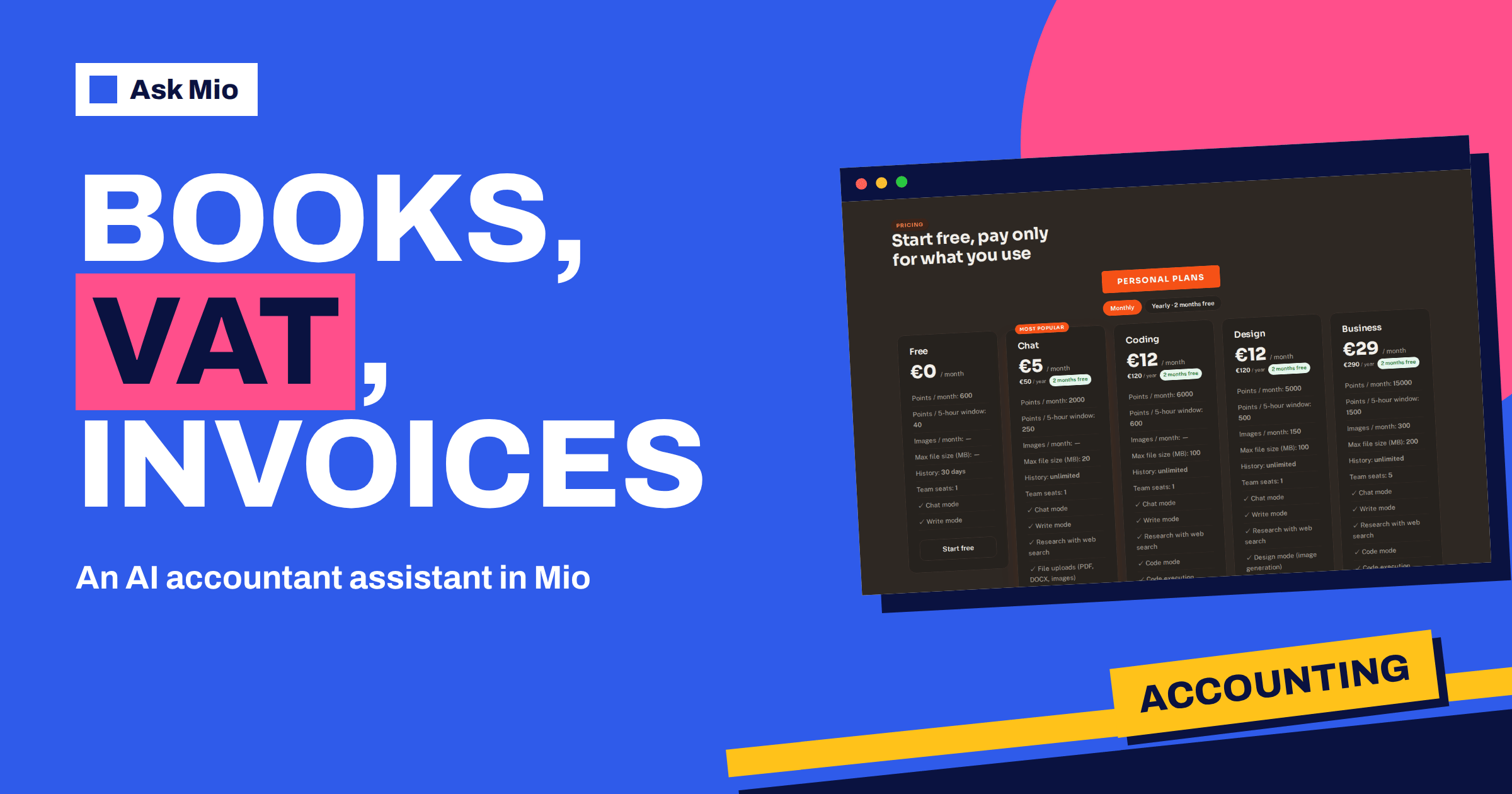
An AI accountant assistant is useful in the gaps between your accountant’s visits: the moment you wonder how to record a purchase, whether a price includes VAT, or what an invoice should show. Ask Mio has an Accountant expert for exactly this. The features page describes it as bookkeeping, VAT, invoices and simple financial models. Choose it, and Mio keeps that role for the whole chat.
This guide explains what the AI accountant assistant can do, how to ask for help with bookkeeping, VAT and invoices, how to build a simple financial model, and where its limits are. The limits matter most. Tax rules differ by country and change over time, so treat answers as explanations and drafts to confirm, not as filed advice.
What the Accountant expert in Mio does
Ask Mio lists 39 experts that turn Mio into a specialist for the whole chat. The Accountant is one of them, and it sits beside the Financial analyst, described as budgets, cash flow, unit economics and forecasts. Our overview of AI assistant experts explains how roles work: you pick the expert once and every answer in that chat follows the role.
The Accountant covers four everyday areas.
- Bookkeeping: how to categorise income and expenses, how to structure a simple ledger, how to reconcile a statement with your records.
- VAT: how to split a gross price into net and VAT, what a reverse charge means in plain words, how to prepare figures for a return.
- Invoices: what an invoice normally contains, how to word payment terms, how to draft a reminder.
- Simple financial models: a monthly profit view, a break-even point, a price test.
How to ask for bookkeeping help
Good bookkeeping questions are concrete. Give the type of business, the country, the transaction and what you already know. Compare two requests. “How do I record this?” is too thin. “I run a one-person design studio in Germany. I paid 480 euros for a yearly software licence on 3 March, VAT included. How should I record it and over what period?” gives Mio something to work with.
- Say who you are: freelancer, shop, small company, club.
- State the country and the period, because rules and dates differ.
- Describe the transaction with amounts and whether they include VAT.
- Ask for the answer in a form you can use: a journal entry, a short table, a checklist.
- Ask what you should confirm with your accountant or the tax authority.
The last step is the safest habit. A good answer names the assumption it relied on, such as “assuming you are VAT-registered”. If it does not, ask.
VAT: split, check and explain
VAT is where exact arithmetic matters most. Ask Mio can use a calculator tool that evaluates an arithmetic expression exactly, and it uses its tools by itself while answering, so a request such as “split 1210 euros including 21% VAT into net and VAT” should come back with the working shown. The number is 1000 net and 210 VAT, and you can check it by multiplying 1000 by 1.21. Ask to see the formula so you can verify the method. Our guide to the exact calculator in Mio explains why this matters.
| Task | What to ask | What to confirm yourself |
|---|---|---|
| Net from gross | Split a gross price at a stated rate and show the working | The rate that applies to your goods or service |
| Gross from net | Add VAT to a net price and round as required | Your rounding rules per line or per invoice |
| Reverse charge | Explain it in plain words with a short example | Whether it applies to your transaction and country |
| Return preparation | List the boxes you need figures for and how to gather them | The current form and deadlines from your tax authority |
| Mixed rates | Total each rate separately in a table | Which items belong to which rate |
Rates, thresholds and special schemes depend on the country. For the EU basics, the European Commission publishes an overview of VAT in the EU, and your own tax authority has the final word.
Invoices: draft, check and chase
An invoice has a legal job, and the required details vary by country. Mio can help you draft the content and the wording, and the ready-made quote and invoice job produces a quote or invoice draft as a PDF with positions and totals. Our guide on the AI invoice and quote generator walks through that job.
Use the Accountant expert for the thinking around the document.
- Contents: ask for a checklist of what an invoice normally shows, then compare it with the rules for your country.
- Terms: ask for plain payment terms and a late-payment sentence you are comfortable with.
- Reminders: ask for three reminder emails, polite, firm and final, and send the ones that match your relationship with the customer.
- Numbers: ask Mio to recompute totals and VAT lines, and then recompute one by hand.
Never send an invoice you have not read. Check the customer’s name and address, the dates, the VAT number and the bank details on the page.
Build a simple financial model
The expert also handles simple models, the kind that fit on one page. Describe your costs and prices and ask for the output you need.
- Monthly profit view: list income lines and cost lines, then ask for a table with totals and the margin.
- Break-even: give fixed costs, price and variable cost per unit, and ask how many units cover the costs.
- Price test: ask what happens to profit if the price rises by 5 percent and sales fall by 8 percent.
- Cash timing: ask how late payments from customers affect your bank balance over three months.
For a model you will keep, the spreadsheet job returns an .xlsx file with several sheets, such as a budget, plan, price list or tracker. The guide to the AI spreadsheet generator shows how it works. If you have data to analyse, the data job reads a pasted table or an attached CSV or XLSX and builds a summary, which our article on the data analysis assistant covers. Remember that a model is only as good as its assumptions, so write them in a visible list.
A monthly routine with the Accountant expert
A short routine beats a long catch-up session. Here is one that fits into half an hour at the end of each month, using one chat that you keep for money tasks.
- Paste the month’s transactions as a plain list: date, description, amount, whether VAT is included.
- Ask for categories. Mio proposes a category for each line and flags the ones it cannot place. You decide the flagged ones.
- Ask for totals. Request totals per category and a VAT summary, with the working.
- Ask for questions. Request a list of items to confirm with your accountant, such as a mixed-use purchase or a payment from abroad.
- Save the result. Copy the table into your own records, and note the assumptions.
On a paid plan, memory can hold your categories and standing assumptions, so the next month starts faster. You can see and control what Mio remembers. If you work with a shared drive, the Google Workspace connector lets Mio read your Drive files when you ask, in read-only mode.
A worked example: one purchase, three questions
Imagine you buy a laptop for 1815 euros including 21% VAT for your small business. You can ask three things in sequence. First: “Split 1815 euros including 21% VAT into net and VAT, and show the working.” The answer should be 1500 net and 315 VAT. Second: “How is a purchase like this usually recorded in a simple ledger, and what documents should I keep?” Mio should describe an asset or equipment entry and name the invoice and proof of payment, with a note that treatment depends on your country and on thresholds. Third: “What should I confirm with my accountant about depreciation and VAT recovery?” That turns a vague worry into a short list you can bring to a meeting.
This pattern, calculate, explain, then list what to confirm, works for most small questions. It uses the assistant for what it does well and leaves the judgement to the person who is responsible for the books.
Foreign currency and dates
Bookkeeping often involves money in another currency. Mio’s currency tool converts money using official ECB rates, either for today or for a past date, so you can ask for the rate on the date of an invoice. That is useful when you need to record a payment in your own currency. Confirm with your accountant which rate your country expects you to use, because rules differ between the rate on the transaction date, a monthly average or a bank rate. See also our guide to currency, crypto and stock prices in Mio.
Keep your records safe
Financial documents are sensitive. On paid plans you can upload PDFs, DOCX files and images, and Mio can read them when you ask. Before you upload, remove anything you do not need, such as full account numbers and personal identifiers, and use a placeholder when a name is not needed. Your chats and files are yours, they are not used to train models and you can export or delete them at any time. Ask Mio runs on its own servers. If you work as a freelancer, our guide to AI for freelancers covers how to set up one chat for money tasks and another for client work.
What an AI accountant assistant cannot do
- It cannot file for you. It does not submit returns or talk to the tax office.
- It cannot see your books. It knows only what you paste or upload in the chat.
- It can be wrong. Rules vary by country and change, so confirm anything that affects a filing, a payment or a contract.
- It is not a substitute for a licensed professional. For audits, disputes, payroll and tax planning, work with a qualified accountant.
The best use is to prepare. Arrive at your accountant with organised figures, a list of questions and a draft model, and the meeting becomes shorter and more useful.
Frequently Asked Questions
What is the Accountant expert in Ask Mio?
It is one of Mio’s 39 experts. The features page describes it as bookkeeping, VAT, invoices and simple financial models. When you choose it, Mio keeps that role for the whole chat, so you can ask a series of money questions without repeating who you are or what you need.
Can an AI accountant assistant replace my accountant?
No. It can explain concepts, draft documents, check arithmetic and structure a model, but it cannot see your books or file anything, and tax rules vary by country. Use it to prepare questions and organise figures, then confirm anything that affects a filing with a qualified professional.
Can Mio calculate VAT correctly?
Mio can use a calculator tool that evaluates arithmetic exactly, so splitting a gross price into net and VAT should be reliable when you state the rate. Always ask for the working, check one example by hand and confirm the rate that applies to your goods or service.
Can I upload receipts or statements?
Paid plans support file uploads of PDF, DOCX and images, with limits of 20 MB on Chat and 100 MB on Coding and Design. Remove details you do not need before uploading. Your chats and files are yours, are not used to train models and can be exported or deleted.
Is the free plan enough to try it?
Yes. The Free plan includes Chat and Write modes with 600 points a month, and a normal reply costs 1 point. That is enough to test bookkeeping questions and VAT splits. File uploads and memory are paid features, so upgrade if you want to work from receipts or keep notes.
The Bottom Line
The AI accountant assistant in Ask Mio is a patient explainer and drafter for bookkeeping, VAT, invoices and simple models. Give it concrete facts, ask for the working, compare results with official sources and confirm anything that matters with a qualified accountant. Start on the free plan and compare options on the Ask Mio pricing page. For the background, read about bookkeeping and double-entry bookkeeping.